Intro
Before you begin
-
You will need your email address and password to setup your computer. If you do not remember your password you can follow these instructions[link].
-
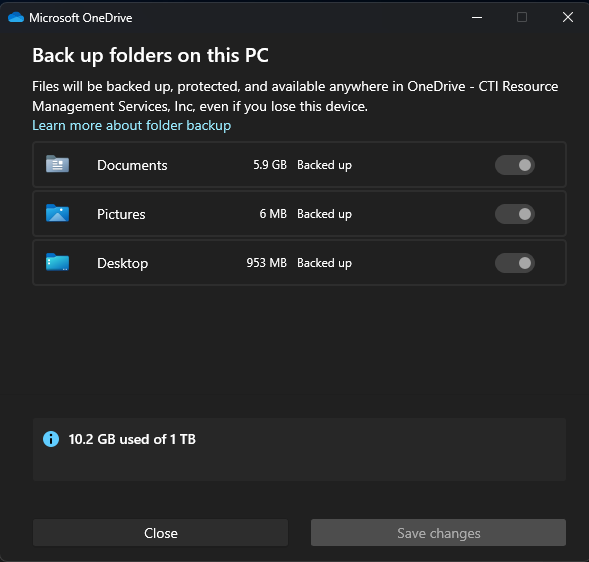
Make sure you have onedrive set to backup your desktop\documents. You can do that by right clicking on the onedrive icon > settings > manage backups and ensure each option is checked.
Equipment setup
Here are a few tips for setting up your laptop and dock.
- If you use the USB-A to USB-C convertor that came with your headset your docking station should have enough ports to fit all of your equipment so the only thing you will have to plug into the laptop is the docking station itself.
- You will no longer need the usb bluetooth dongle.
- The laptop does not have to be open to turn the computer on or off. If the laptop is plugged into the dock you can use the power button on the docking station located at the front right of the dock.
Initial setup
The initial setup will take roughly one to two hours depending on internet connection. Some of these screens may not appear if you are connected using a wired connection through your docking station. If you've setup your laptop using the docking station and a wired connection you can skip to step five.
-
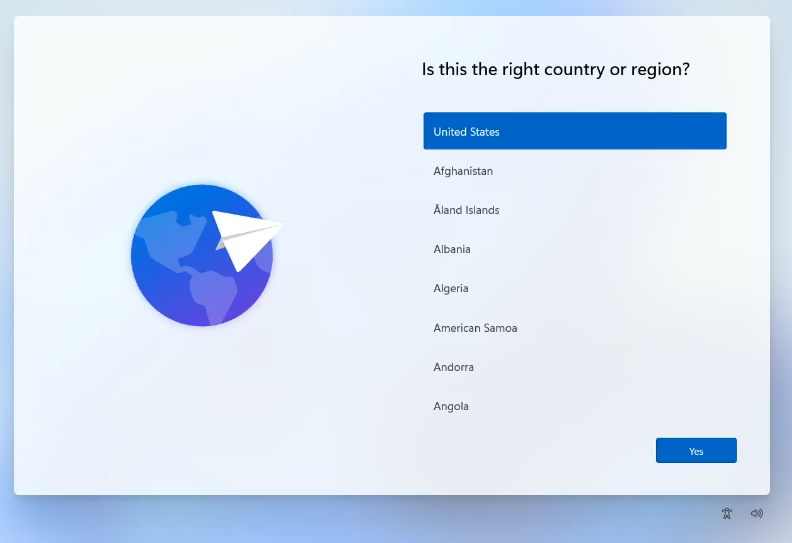
Select the "United States" region.
-
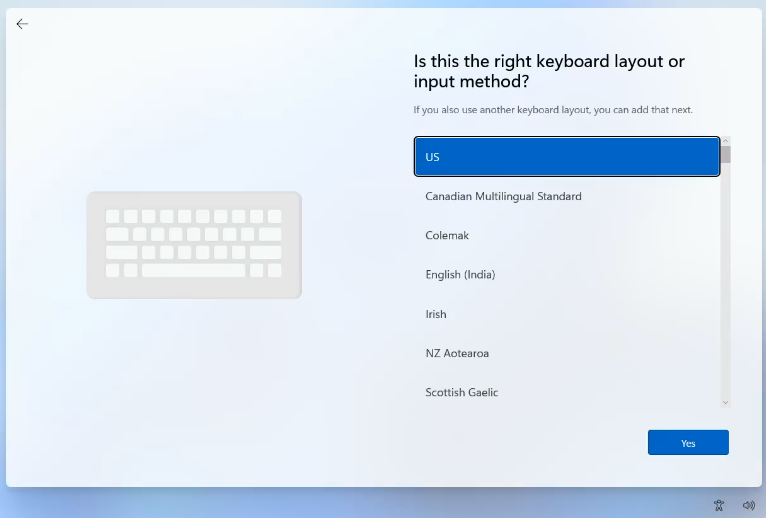
Select the "US" keyboard
-
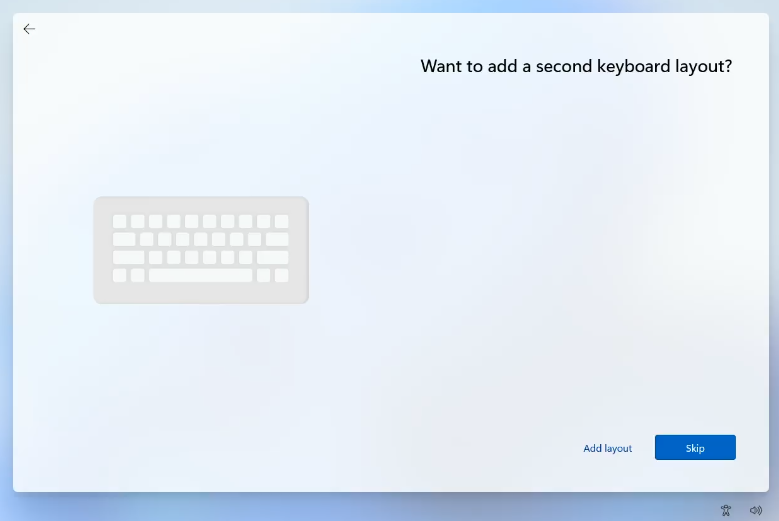
Skip adding a secondary keyboard
-
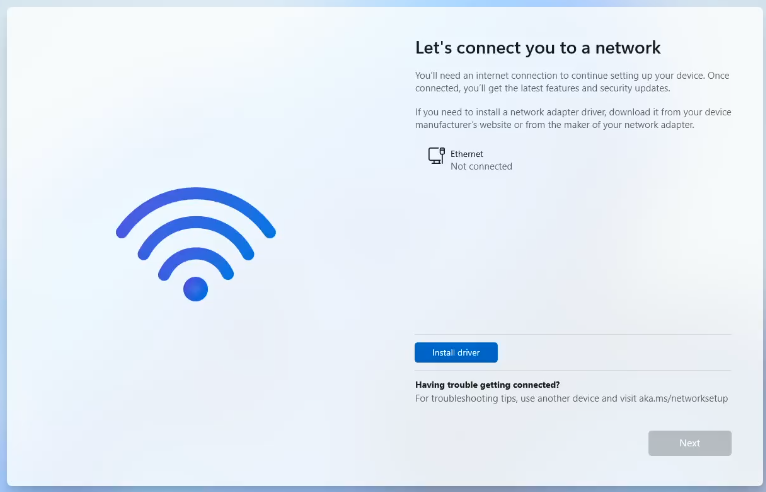
Connect to your wired or wireless network
-
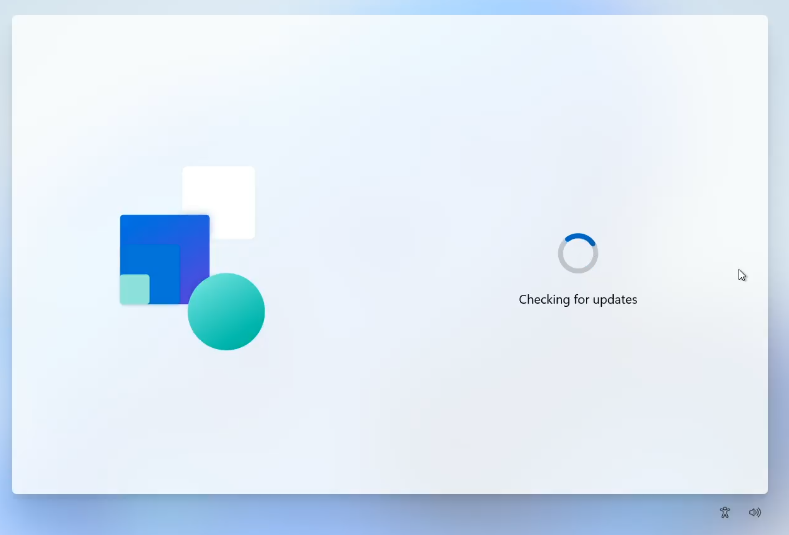
The computer will download some updates and check for policies. This may take some time.
-
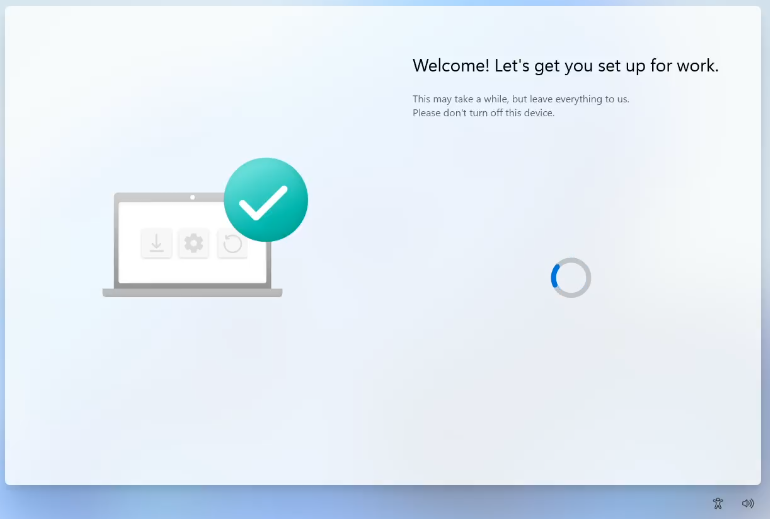
It may restart and then it will begin seting up the computer
-
It will be on this screen for most of the setup time. This will take some time.
-
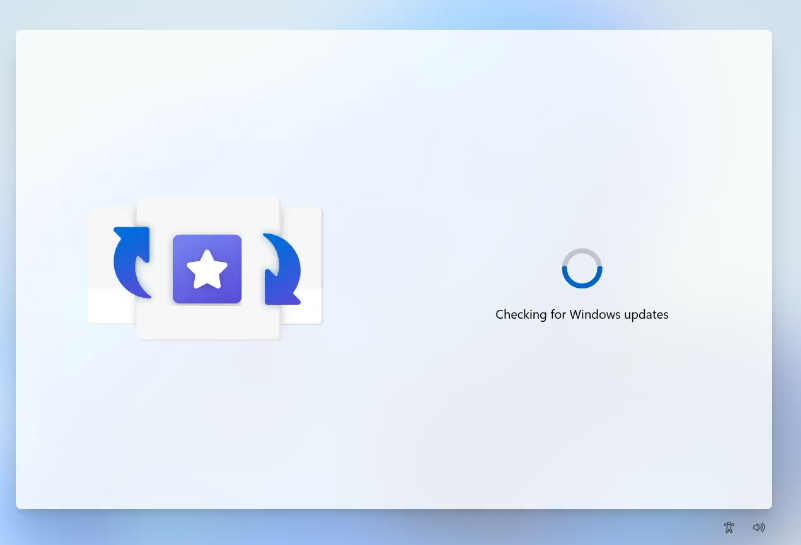
Before logging in more updates will be downloaded.
-
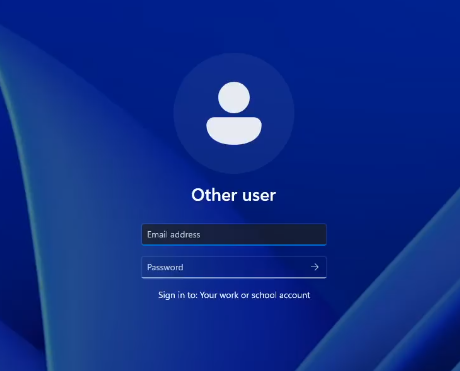
Login with your work email and password. It will require MFA.
-
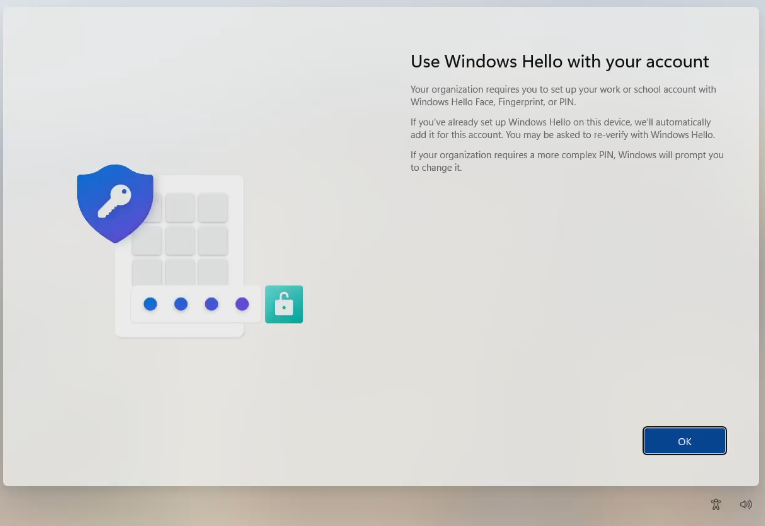
You will then setup your PIN to login to the computer. It needs to be at least 8 characters.
Last steps
Once you are logged in wait about 15 minutes for all of the policies to download and then restart your computer.